Profile & AI Usage
The Profile page displays your account information, organization details, and AI usage statistics. Access it from the user menu in the header.
Accessing Your Profile
- Click your name/avatar in the header
- Select Profile from the dropdown menu
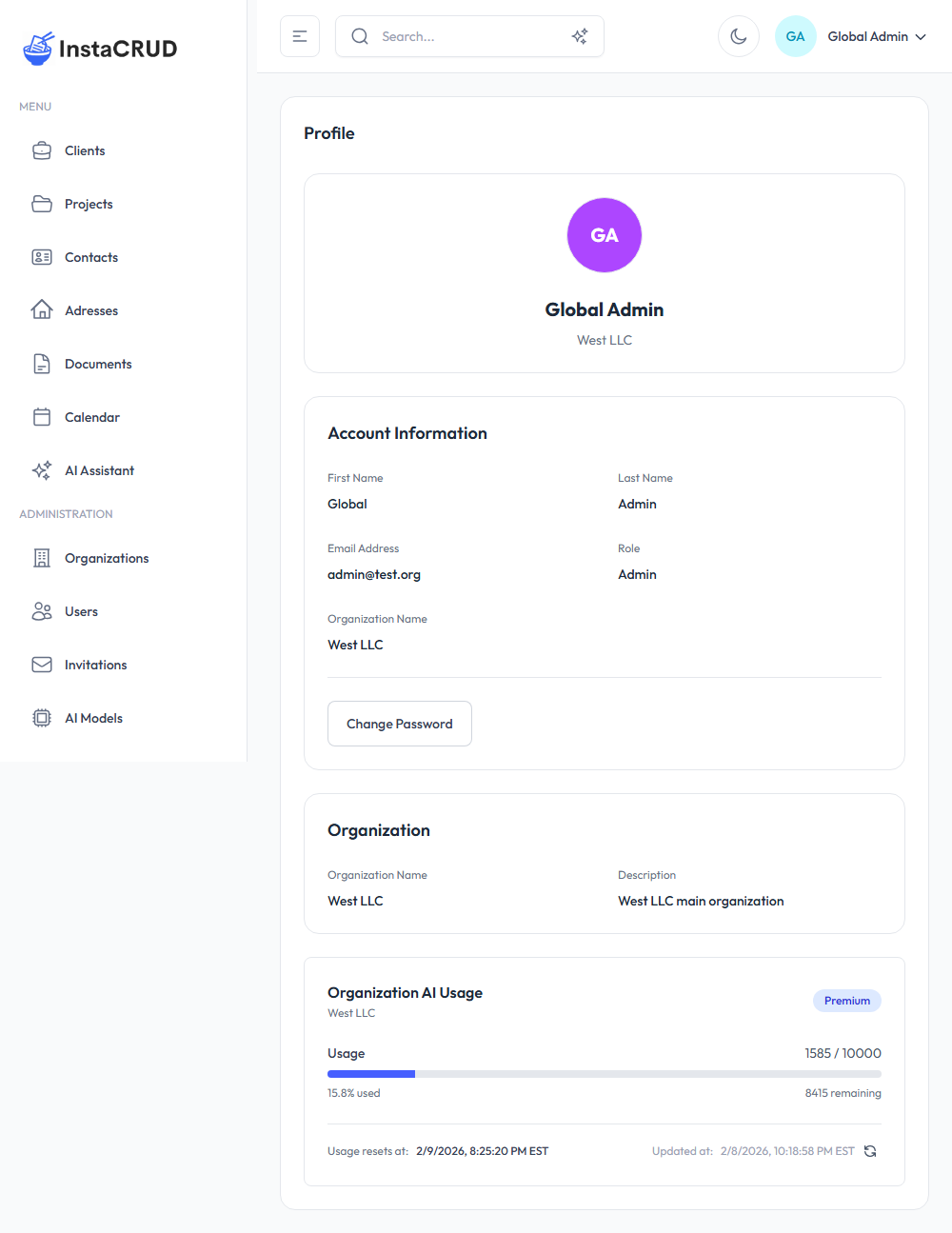
Profile Sections
User Card
The top section displays your identity:
- Avatar - Colored circle with your initials
- First Name and Last Name
- Organization Name - Your current organization
Account Information
View your account details:
| Field | Description |
|---|---|
| First Name | Your first name |
| Last Name | Your last name |
| Email Address | Your login email |
| Role | Your assigned role (Admin, Org Admin, User) |
| Organization Name | Your organization |
To update your name or email, contact your administrator. These fields are read-only in the profile view.
Change Password
Update your account password:
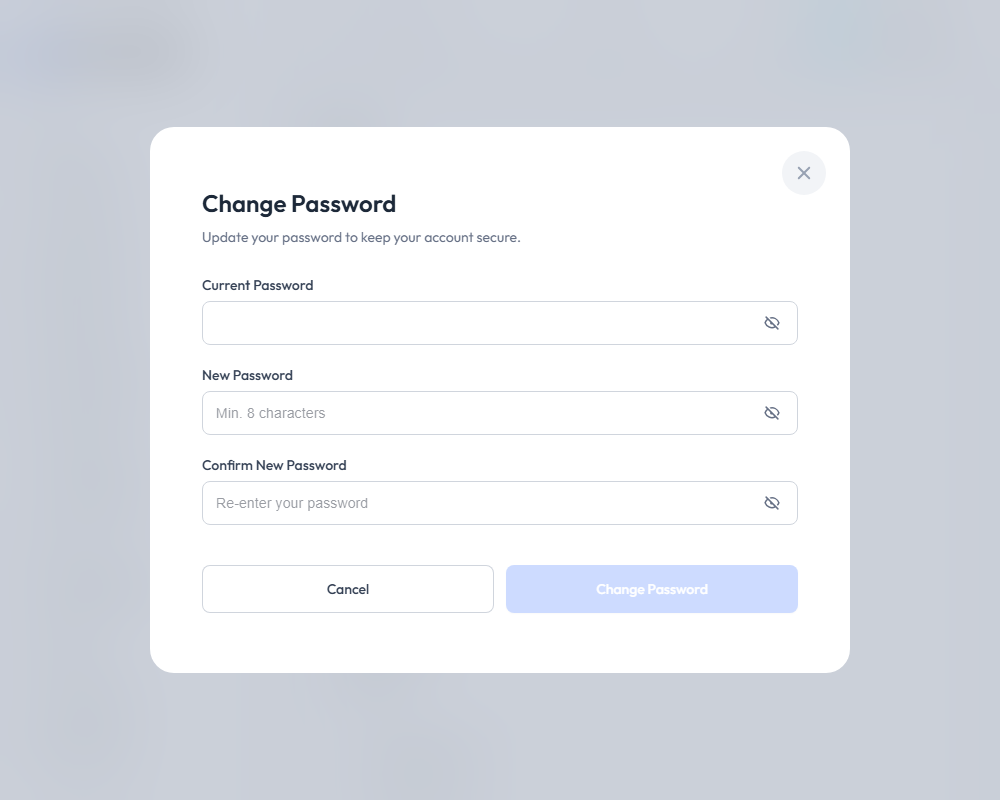
- Click the Change Password button
- Enter your Current Password
- Enter your New Password (minimum 8 characters)
- Confirm the new password
- Click Save to update
Password Requirements
- Minimum 8 characters
- New password and confirmation must match
- Current password must be correct
Visibility Toggle
Click the eye icon to show/hide password characters while typing.
Organization Information
View details about your organization:
| Field | Description |
|---|---|
| Organization Name | Your organization's display name |
| Description | Organization details and notes |
AI Usage Statistics
The AI Usage card shows your organization's AI consumption:
Usage Display
| Element | Description |
|---|---|
| Organization Name | Which organization this applies to |
| Tier Name | Your subscription tier (e.g., "Premium") |
| Progress Bar | Visual usage indicator |
| Usage Numbers | Current / Limit (e.g., "1585 / 10000") |
| Percentage | How much of your quota is used |
| Remaining | Credits still available |
| Reset Date | When your usage quota resets |
| Updated Date | When stats were last refreshed |
Progress Bar Colors
The progress bar changes color based on usage level:
| Usage Level | Color | Meaning |
|---|---|---|
| 0-74% | Green | Healthy usage |
| 75-89% | Yellow | Approaching limit |
| 90%+ | Red | Near or at limit |
Unlimited Tiers
If your organization has an unlimited tier:
- Usage is still tracked
- No limit is displayed
- Progress bar shows absolute usage
Refreshing Usage Data
- Click the Refresh button on the AI Usage card
- The latest usage statistics are fetched
- The "Updated at" timestamp reflects the refresh
Usage data may take a moment to update after AI operations.
Understanding Usage
What Counts as Usage
AI usage is tracked when:
- Sending messages in AI Assistant
- Generating images
- Using semantic search
- Any AI model invocation
Usage Credits
Different operations may consume different amounts:
- Simple chat messages: Lower credit usage
- Long responses: Higher credit usage
- Image generation: Higher credit usage
- Semantic search: Moderate credit usage
Usage Reset
Your organization's usage typically resets:
- At a regular interval (daily, monthly)
- The exact reset time is shown on the profile page
- After reset, usage returns to 0
Managing Your Account
Best Practices
- Monitor usage regularly - Check the profile page weekly
- Update password periodically - Change every 3-6 months
- Use strong passwords - Mix letters, numbers, symbols
- Know your limits - Understand your tier's quota
If You're Approaching the Limit
When usage reaches 75%+:
- Review your AI usage patterns
- Consider which operations are essential
- Contact your administrator about tier upgrades
- Plan usage carefully until reset
If You've Reached the Limit
At 100% usage:
- AI features may be limited
- Wait for usage reset, or
- Request a tier upgrade from your administrator
Troubleshooting
Cannot Change Password
- Verify current password is correct
- Ensure new password meets requirements
- Check that confirmation matches
- Try refreshing the page
Usage Not Updating
- Click the refresh button
- Wait a few moments and try again
- Check your internet connection
- Contact support if issues persist
Wrong Organization Shown
- Log out and log back in
- Clear browser cache
- Contact your administrator
Role Appears Incorrect
- Roles are assigned by administrators
- Contact your admin if you need different access
- Note: Role changes require re-login to take effect
Privacy and Security
Your Data
- Profile information is stored securely
- Passwords are encrypted
- Session data expires after inactivity
Security Recommendations
- Don't share your password
- Log out on shared computers
- Report suspicious activity to administrators
- Use unique passwords for InstaCRUD
Session Management
- Sessions expire after a period of inactivity
- You'll be redirected to sign-in when expired
- Multiple device sessions may be active