Managing Clients
Clients are the core business entities in InstaCRUD. A client typically represents a customer organization or company that you work with.
Clients List
Navigate to Clients from the sidebar to view all clients in your organization.
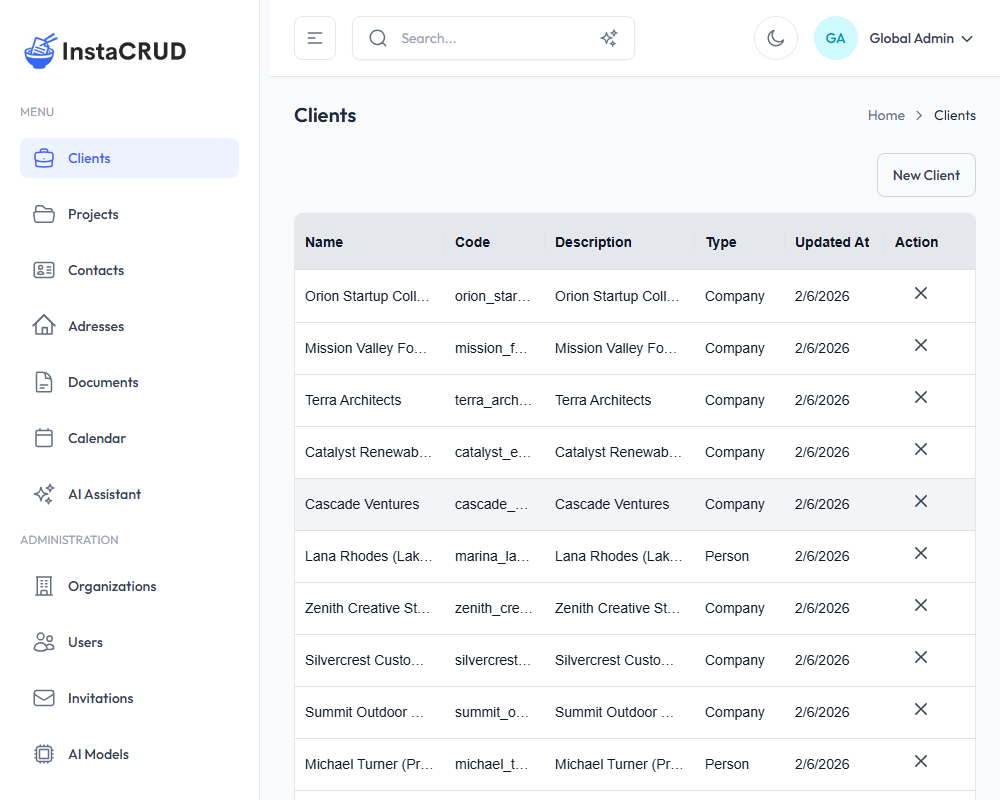
The list displays:
- Name - The client's name (click to view details)
- Code - A unique identifier code
- Type - The client type classification
- Actions - Edit and delete options
Pagination
The clients list shows 10 records per page. Use the pagination controls at the bottom to navigate between pages.
Creating a New Client
- Click the New Client button in the top-right corner
- Fill in the required fields:
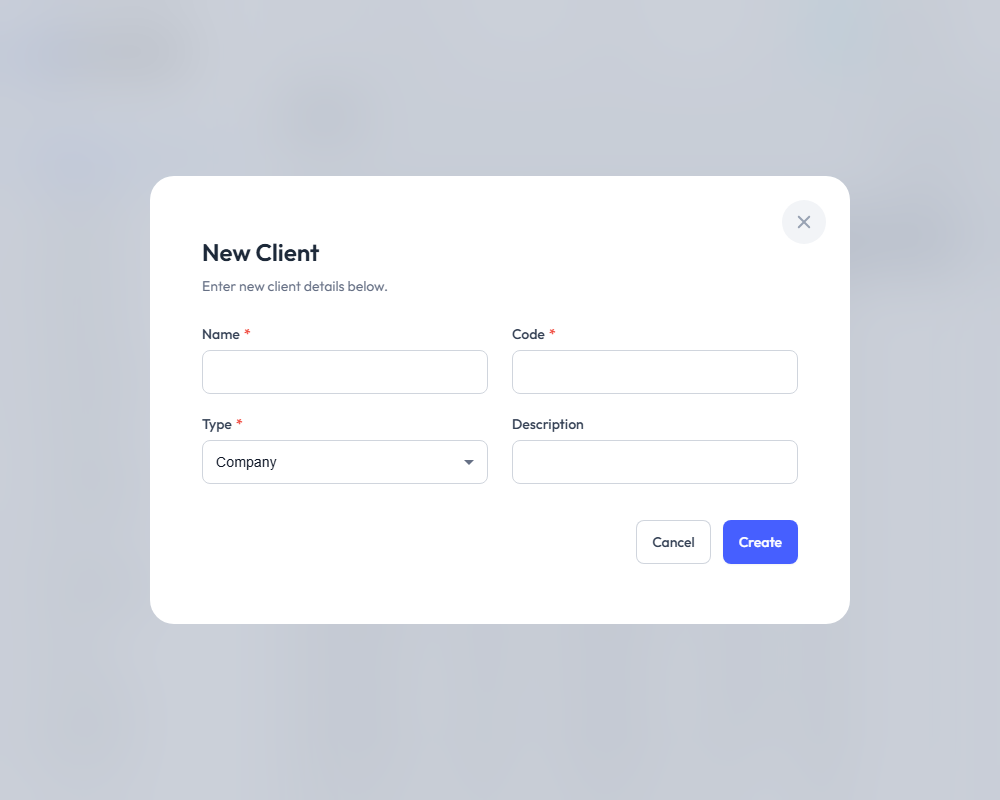
| Field | Required | Description |
|---|---|---|
| Name | Yes | The client's display name |
| Code | Yes | A unique identifier (e.g., "ACME-001") |
| Type | Yes | Select from the available client types |
| Description | No | Additional notes about the client |
- Click Save to create the client
Client Detail View
Click on a client name to open the detail view.
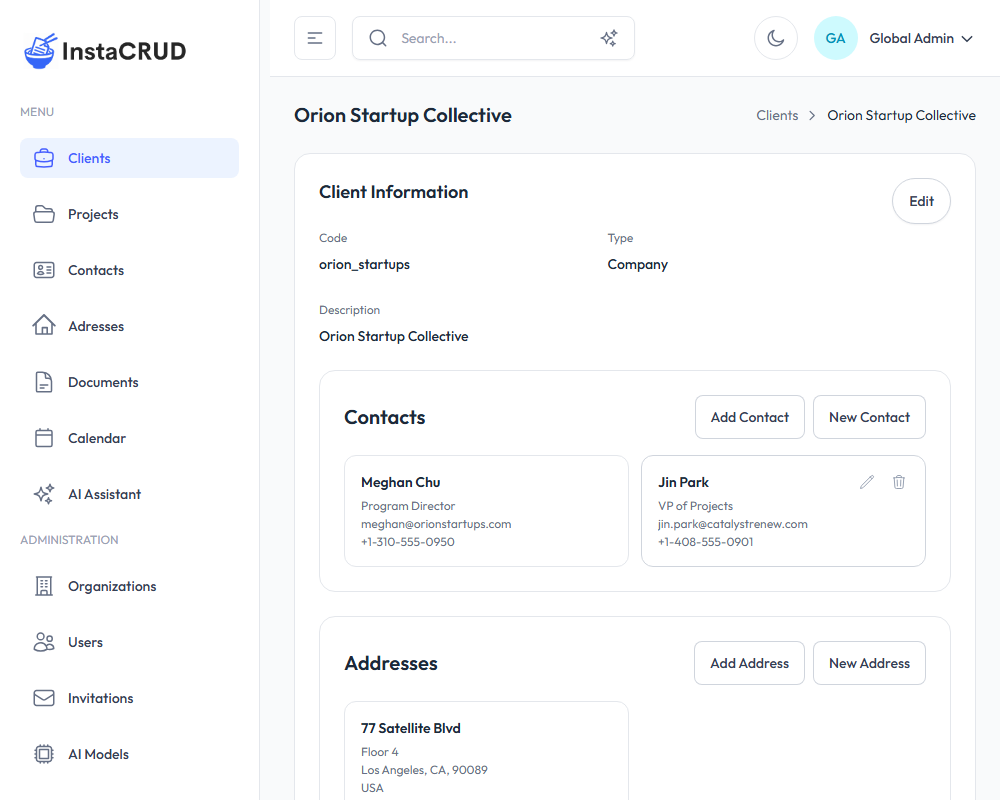
The detail view shows:
- Client Information - Name, code, type, and description
- Associated Contacts - People linked to this client
- Associated Addresses - Addresses linked to this client
- Projects - Projects belonging to this client
Editing Client Information
- Click the Edit button
- Modify the fields as needed
- Click Save to apply changes
Managing Client Contacts
From the client detail view, you can manage associated contacts:
Adding an Existing Contact
- In the Contacts section, click Add Contact
- Select a contact from the dropdown
- The contact will be linked to this client
Creating a New Contact
- Click Create New in the Contacts section
- Fill in the contact details
- The new contact will be automatically linked to this client
Removing a Contact
- Find the contact in the list
- Click the remove/unlink button
- The contact will be unlinked (not deleted)
Managing Client Addresses
Similar to contacts, you can manage addresses:
Adding an Existing Address
- In the Addresses section, click Add Address
- Select an address from the dropdown
Creating a New Address
- Click Create New in the Addresses section
- Fill in the address details (street, city, state, zip, country)
- The new address will be automatically linked
Removing an Address
- Find the address in the list
- Click the remove/unlink button
Viewing Client Projects
The client detail view displays all projects associated with this client. Click on any project to navigate to its detail page.
Deleting a Client
- Navigate to the client detail view or use the delete action in the list
- Click Delete
- Confirm the deletion when prompted
Deleting a client may affect associated projects and data. Make sure you want to permanently remove this record.
Best Practices
- Use meaningful codes - Create a consistent code format (e.g., "COMPANY-001")
- Keep descriptions updated - Add notes about special requirements or preferences
- Link all relevant contacts - Ensure all stakeholders are associated with the client
- Add complete addresses - Include all client locations for reference