Agentic Page Assistant
This document describes the architecture of the Agentic Page Assistant — the contextual AI panel that opens alongside any admin page — and explains how to extend it with per-page context.
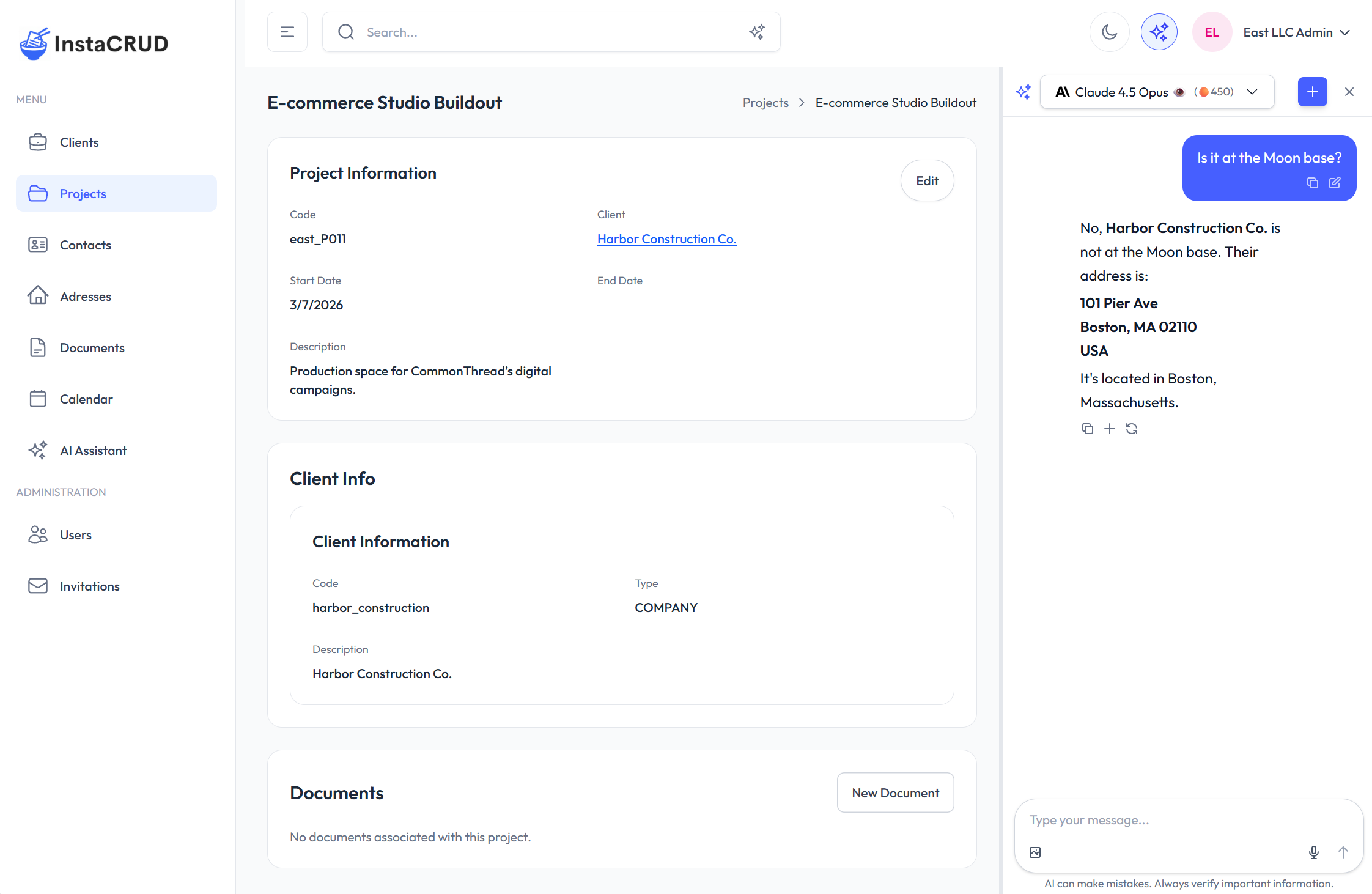
For the user-facing description, see Agentic Page Assistant (User Guide).
Architecture Overview
The agentic assistant reuses the existing chat infrastructure (useConversation, useChatStream, useAiModels) and adds a parallel state layer that tracks panel visibility, page context, and a per-navigation conversation ID.
AdminLayout
├── AiPanelProvider                  ← global state (context, panel open/close)
│   └── AdminLayoutInner
│       ├── AppHeader (✦ button)
│       ├── ResizablePanel           ← splits screen when panel is open
│       │   ├── left:  page content (children)
│       │   └── right: InPageChat
│       └── [page components]
│           └── useAiPageContext()   ← pages publish context here
Panel conversations land in the same global history as the full-screen assistant — no separate storage.
Key Files
| File | Role |
|---|---|
frontend/src/context/AiPanelContext.tsx | Global state: panel open/close, page context and system prompt, panel conversation ID, exclusion list |
frontend/src/components/ai-panel/InPageChat.tsx | Compact chat panel; reuses useConversation + useChatStream; always sends tools: "*" |
frontend/src/components/ai-panel/ResizablePanel.tsx | Two-pane split with drag handle; starts 2/3 – 1/3, clamped 25–80 % |
frontend/src/hooks/useAiPageContext.ts | Drop-in hook for pages to publish context and systemPrompt |
frontend/src/app/(admin)/layout.tsx | Wraps everything in AiPanelProvider; resets panel and conversation ID on navigation |
backend/instacrud/api/ai_api.py | POST /chat — substitutes $PATH/$CONTEXT, then either runs the agentic loop or plain completion |
backend/instacrud/api/ai_dto.py | ChatRequest DTO with system_prompt, path, context, tools |
Context and System Prompt
The two most important customization points are context (what the assistant knows) and systemPrompt (how it behaves).
How pages publish them
Call useAiPageContext anywhere in a page or component:
import { useAiPageContext } from '@/hooks/useAiPageContext';

useAiPageContext({
  context: JSON.stringify(myData),   // serialized snapshot of the page's data
  systemPrompt: `...`,               // optional; falls back to the generic template
});
The hook pushes both values into AiPanelContext and clears them on unmount, so stale context never leaks to the next page.
Where context is hooked in
Context is registered at the generic component level so individual pages don't need changes:
| Component | What is registered |
|---|---|
EntityGrid | JSON.stringify(rows) — the full visible row set, updated when rows change |
EntityDetailView | JSON.stringify(item) — the open record, updated when the item changes |
Calendar | Array of { id, title, start, end, type, entityId } for all loaded events |
Adding context to a new page follows the same pattern: call useAiPageContext with the data the assistant should know about.
System prompt: generic vs. page-provided
InPageChat picks the effective system prompt this way:
- If the current page published a non-empty
systemPromptviauseAiPageContext→ use that. - Otherwise → use the generic template defined in
AiPanelContext:
The user is on $PATH and is seeing the following data:
$CONTEXT

Answer their question helpfully and concisely.
Before the request reaches the LLM, the backend substitutes:
| Variable | Replaced with |
|---|---|
$PATH | Current page route, e.g. /clients/abc123 |
$CONTEXT | The serialized context string published by the page |
Substitution is a single-pass regex replace (injection-safe). If the page passed no context, $CONTEXT is simply omitted from the prompt.
To give a page its own agentic persona, supply a systemPrompt that positions the assistant for that context:
useAiPageContext({
  context: JSON.stringify(project),
  systemPrompt: `You are an agentic project assistant.
The user is reviewing a project at $PATH.
Project data:
$CONTEXT

You can read and update project records using your tools.`,
});
The generic template is intentionally minimal — page-level overrides are the right place to add domain instructions, tone, or tool guidance.
Backend: /chat Endpoint
The endpoint has two execution paths depending on the tools field.
With tools == "*" (what InPageChat always sends):
POST /chat
  → build SystemMessage from system_prompt (with $PATH/$CONTEXT substitution)
  → append _TOOL_DIRECTIVE to the system message
  → bind ALL_TOOLS to the model
  → run LangChain agentic loop (max 10 iterations)
  → return final answer (buffered, then emitted as a single streaming chunk if stream=True)
Any tool added to ALL_TOOLS in backend/instacrud/ai/functions/crud.py is automatically available to the agentic panel — no wiring needed.
With tools == null (full-screen assistant in plain-chat mode):
POST /chat
  → build SystemMessage (same substitution)
  → plain streaming/non-streaming completion, no tools
_TOOL_DIRECTIVE
When the agentic loop is active, a fixed directive string (_TOOL_DIRECTIVE) is appended to whatever system message is in place (or prepended as a new SystemMessage if there is none). It instructs the model to:
- Fetch data autonomously — when answering a question that requires data not already in the context (e.g. resolving an ID, looking up a related record), call the appropriate CRUD tool immediately rather than asking the user to navigate elsewhere.
- Confirm before writes — before any create, update, or delete operation, describe the exact change and wait for explicit user confirmation.
This directive is invisible to the frontend; it is injected server-side on every agentic request.
ChatRequest DTO
class ChatRequest(BaseModel):
    prompt: str
    model_id: str
    stream: bool = False
    reasoning: bool = False
    system_prompt: Optional[str] = None   # template; $PATH / $CONTEXT substituted server-side
    path: Optional[str] = None
    context: Optional[str] = None
    tools: Optional[str] = None           # "*" → agentic loop; None → plain completion
All user-supplied fields are validated for prompt injection before any LLM call.
Conversation History
Panel conversations use browser-generated UUIDs as external_uuid and are stored and synced via the same serverSync + IndexedDB stack as the full-screen assistant. Every panel conversation appears in the full assistant's conversation dropdown and can be continued there.
The four new fields (system_prompt, path, context, tools) are persisted on the Conversation model (backend) and LocalConversation (IndexedDB) so the full assistant can restore the original agentic context when the user reopens a panel conversation.
Exclusion List
The sparkles button is grayed out (disabled) on paths where opening a second chat panel makes no sense. The exclusion list lives in AiPanelContext and currently covers /ai-assistant and /ai-assistant/[id]. Add new paths to that list if you add other full-screen AI views.
Related
- AI Framework —
AiServiceClient, model abstraction, streaming - Using the AI Tools — agentic CRUD and search tool functions (
ALL_TOOLS) - Agentic Page Assistant (User Guide)